



How to Automate Power BI Reports for Streamlined Insights
Introduction
Wondering how to automate Power BI reports without losing control or accuracy? Automating Power BI reports means setting up processes allowing one to export data from Power BI to platforms where business decisions are made such as PowerPoints, documents, and emails This not only reduces repetitive work but also ensures timely, accurate insights, helping teams make faster data-driven decisions.
Power BI is a powerful business intelligence platform that transforms raw data into immersive reports and dashboards. However, manually updating these files can be error-prone and time-consuming. Automating these processes frees up valuable time and reduces human error.
As of November 2025, three primary ways dominate the automation landscape for Power BI reports:
1. Power BI Service Scheduled Refresh
2. Power Automate workflows integrated with Power BI
3. Data-driven content automation tools like Rollstack that connect Power BI directly to slide decks
4. Power BI Native Embed
In this guide, you’ll discover how each method works, their pros and cons, and examples of real teams improving reporting efficiency. By the end, you’ll understand how to reduce manual report prep from hours to minutes and decide which automation method fits your needs best.
Option 1: Power BI Service Scheduled Refresh
How It Works
Power BI Service scheduled refresh is the built-in method to automate data updates in Power BI reports and dashboards. After publishing your report to the Power BI Service (powerbi.com), you connect it to the data source and configure scheduled refresh frequency—daily, hourly, or more frequent depending on your license.
This feature pulls data from your source systems—such as SQL databases, Azure Data Lakes, or Excel files—refreshes the dataset in the Power BI Service, and automatically updates visuals on dashboards provided users have access. You can configure notifications for refresh failures and manage credentials securely.
Pros & Cons
Pros:
- Native Power BI capability; no extra tools needed
- Supports multiple refresh frequencies
- Works with a variety of on-premises and cloud data sources
- Can integrate with Power BI REST API for advanced control
Cons:
- Cannot automate exporting or delivering reports in formats like PDF or PowerPoint
- Limited to data refresh, no report distribution automation
- Requires Pro or Premium Power BI licenses for more frequent refreshes
- Less flexibility for complex workflows or approval processes
Option 2: Power Automate Integration
How It Works
Power Automate is Microsoft’s workflow automation platform that can be integrated with Power BI for enhanced automation beyond data refresh. For example, you can create flows that trigger when a dataset is refreshed, or when a report snapshot reaches specific values, to send notifications, export files, or update other systems.
A common use case is automating the emailing of updated reports. Power Automate can export Power BI reports to files (e.g., PDF) on schedule or trigger and send them via email or Teams channels. Some advanced flows also post data or alerts into collaboration tools, helping stakeholders act faster.
Pros & Cons
Pros
- Extends automation beyond refresh to notifications and delivery
- Limited but existing integrations within Microsoft 365 ecosystem
- No coding required for most workflows
- Enables multi-step workflows with conditions and approvals
Option 3: Rollstack Automation of Data-driven Slide Decks and Content
How It Works (Step-by-Step)
Rollstack is a presentation automation platform that connects BI tools like Power BI directly with slide templates in PowerPoint and Google Slides, automating not just data refresh but also the creation and distribution of presentation-ready reports.
- Step 1: Connect Power BI to your Slide Deck platform using Rollstack. Link your Power BI datasets or dashboards to Rollstack's platform through one-click integration with PowerPoint or Google Slides.
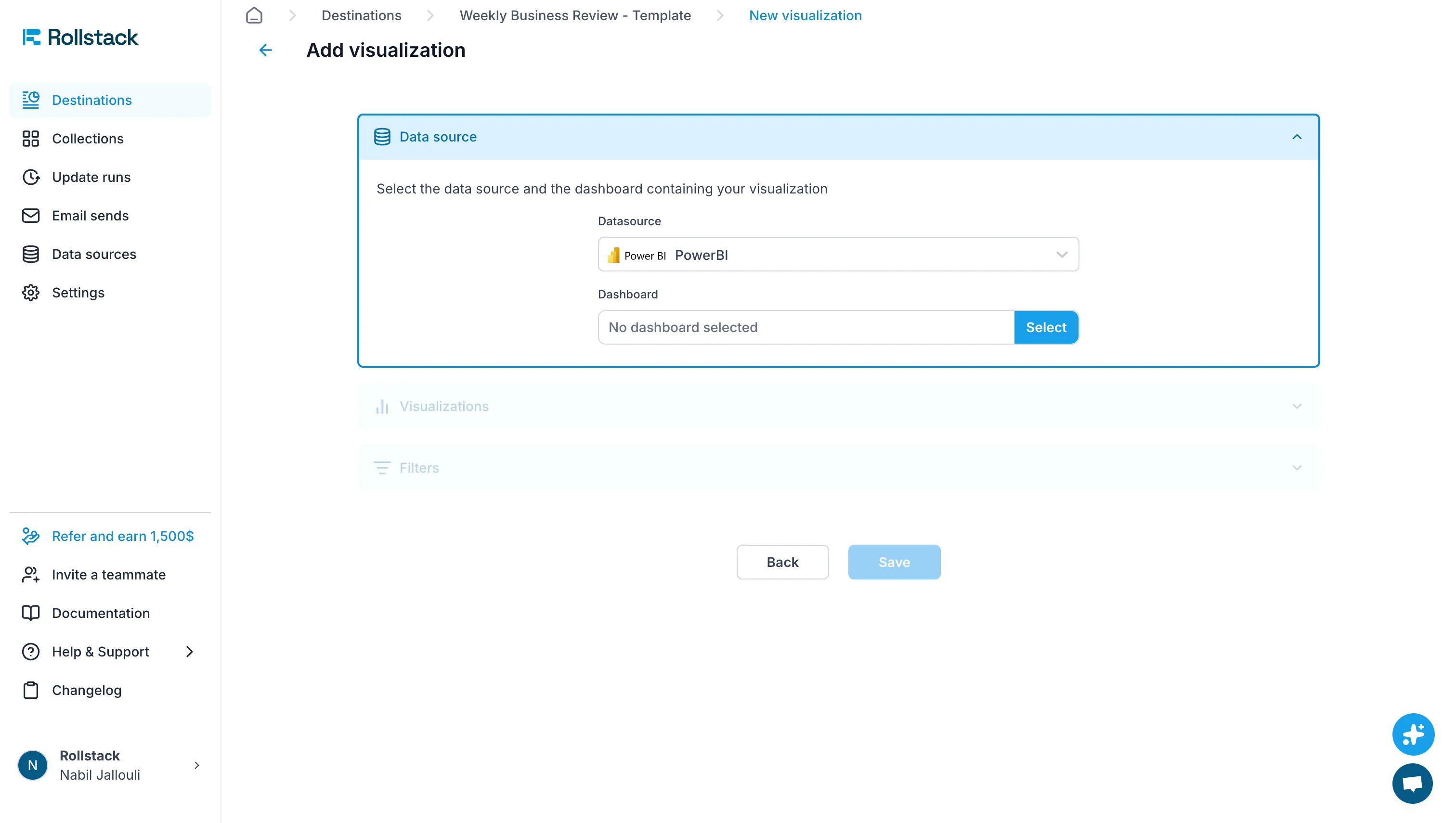
- Step 2: Embed Power BI Visualizations in your Slide Decks using Rollstack. Map Power BI data points and visuals to pre-designed, on-brand templates tailored to your team's branding and reporting needs.
- Step 3: Automate Your Data Updates. Schedule automated updates where Rollstack pulls the latest data from Power BI and refreshes all visuals in your slides at your preferred frequency.
- Step 4: Create Scaled Content using Templates. Generate multiple versions of reports tailored to different stakeholders, clients, or regions using template-driven automation.
- Step 5: Share Your Work via Email or Slack. Automatically distribute polished presentations and documents to stakeholders through email or integrate with collaboration platforms like Slack.
- Step 6: Version Control and Manage Archives. Track changes, maintain historical versions, and manage archives of all generated reports for compliance and reference
Data & Analytics, for example, routinely reduce deck creation time from 8 hours to under 45 minutes using Rollstack’s automation. Finance teams benefit from up-to-date quarterly reports with minimal manual update steps.
Best Use Cases
Client quarterly business reviews from Customer Success teams needing consistent branding and data accuracy
Executive dashboards converted into presentation-ready slides automatically
Teams that generate multiple versions of reports tailored to different stakeholders
Organizations needing to scale reporting
Pros & Cons
Pros:
Automates end to end report generation including formatting, branding, and exporting
Offers integrations with additional BI Tools: Power BI, with Google Slides and PowerPoint
Offers integrations with Content Platforms: Google Slides, Google Docs, PowerPoint, Email
Reduces manual slide deck preparation drastically
Enables scheduled, hands-off report delivery in multiple formats
Cons:
Requires subscription to Rollstack service
Best suited for teams with recurring presentation needs rather than one-off reports
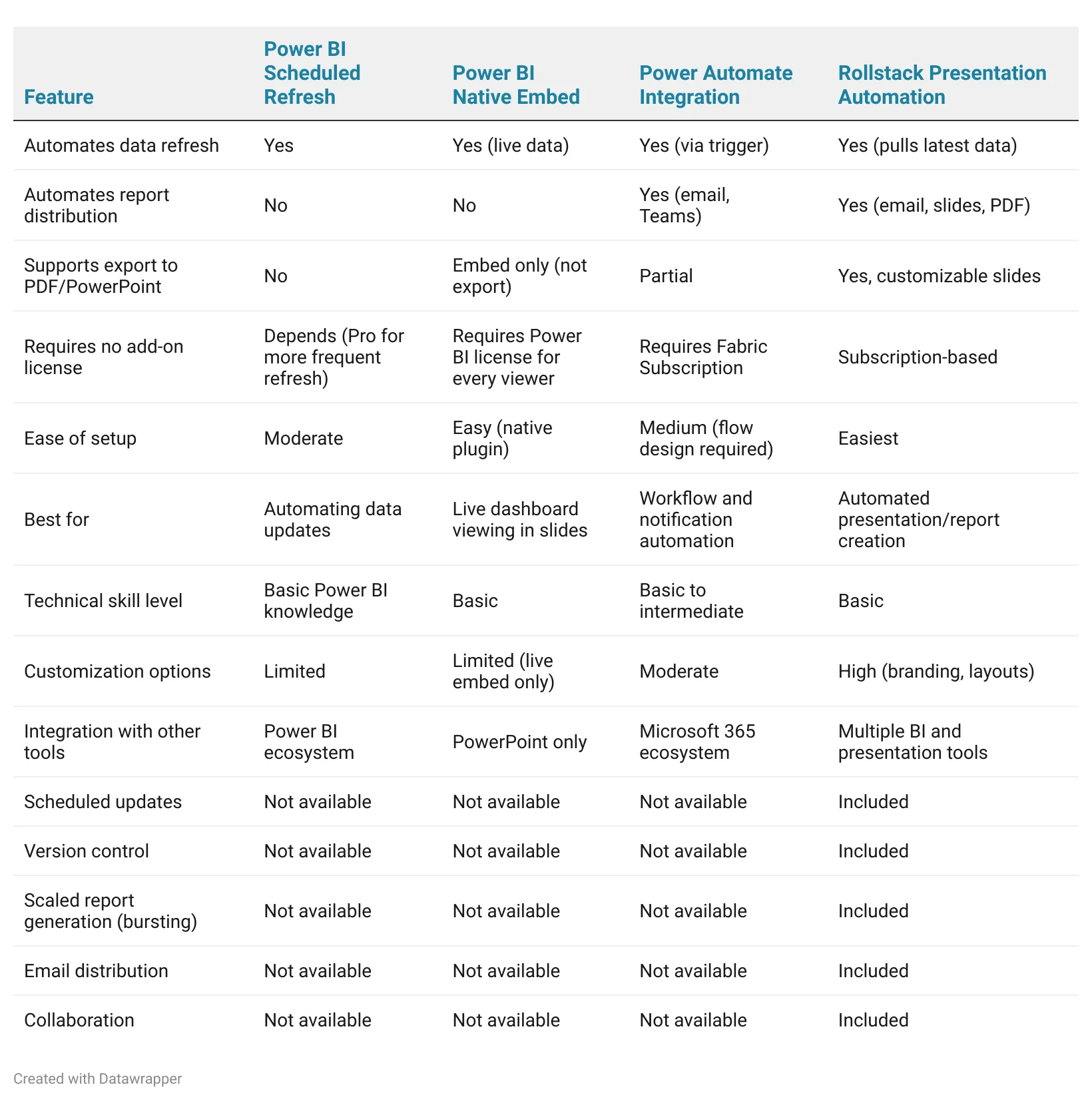
Comparison: Which Option is Best?
Decision Framework
Choosing the right Power BI automation method depends on your reporting needs, technical resources, report complexity, and budget.
For simple data refresh with no delivery needs, Power BI Service Refresh is ideal.
If you want triggered workflows or automated alerts beyond refresh, integrate Power Automate.
For end-to-end report creation and presentation generation with distributed delivery, Rollstack offers unmatched automation benefits.
Comparison Table
Recommendation
Teams looking for a complex home built solution requiring continuous human in the loop maintenance can explore Power Automate.
Teams looking for a full end to end, low touch and scalable solution should turn to Rollstack.
FAQ
Q: Can Rollstack automate exporting Power BI reports to PowerPoint?
A: Yes, Rollstack directly connects Power BI to PowerPoint and Google Slides, automating data updates and slide deck creation with branding intact.
Q: How does Rollstack handle report scheduling?
A: Rollstack allows you to schedule automated updates at your preferred frequency—daily, weekly, or monthly—ensuring your presentations always contain the latest data without manual intervention.
Q: Does Rollstack preserve my brand formatting?
A: Yes, Rollstack maintains your custom templates, colors, fonts, and layouts, ensuring every automated report matches your corporate branding standards.
Q: Can Rollstack distribute reports automatically via email?
A: Yes, Rollstack supports automated report distribution through email, enabling scheduled or event-driven sends to stakeholders without manual effort.
Q: Does Rollstack support connecting multiple BI platforms?
A: Yes, Rollstack integrates various BI tools including Power BI, Tableau, and Looker, providing unified presentation automation across platforms.
Q: How much time can Rollstack save on report creation?
A: Teams typically reduce deck creation time from 2 days per month to just under 45 minutes using Rollstack's automation, reclaiming valuable hours for strategic work.
Q: Does Rollstack require coding skills to set up?
A: No, Rollstack features a no-code interface with one-click integrations. Initial setup may require some configuration, but ongoing use requires no technical expertise. Audiences like customer success managers are able to use Rollstack independently.
Q: Can Rollstack create multiple tailored versions of reports?
A: Yes, Rollstack excels at generating multiple versions of reports tailored to different stakeholders, scaling your reporting capacity without additional manual effort.
Conclusion
Automating Power BI reports unlocks efficient, accurate, and timely insights critical for modern business decision-making. While Power BI Service scheduled refresh handles basic data updates and Power Automate offers workflow automation, neither provides the complete end-to-end solution that modern teams need.
Rollstack stands out as the easiest and most comprehensive option, eliminating the manual "last mile problem" of copying and pasting visuals into presentations. With one-click integration, no-code setup, and full automation from data refresh through branded slide deck delivery, Rollstack transforms what used to take hours into minutes.
For teams serious about scaling their reporting without continuous maintenance or technical overhead, Rollstack is the clear choice.
For additional guidance on Power BI best practices and integrating with your existing tools, check out these resources: Connect Power BI To PowerPoint
Start automating today to reclaim valuable hours and drive smarter decisions.


Ready to close the gap between your BI tool and the board deck?
See how finance teams automate the full delivery layer: from governed BI data to formatted, distributed board materials, without manual exports.


